Trend Tool – Editing a Y-Axis
Each y-axis uses its own property set. The properties for one y-axis apply to all of its child series, no matter how many series there are. This includes scaling and plot style. If you do not want a y-axis's properties to apply to its child series, consider moving anomalous child series into a new, different y-axis.
For more information, see the following subsections below:
Note: The following procedure assumes that you are using CygNet Studio in Edit mode, have successfully added a Trend Tool to TheView, and are looking at either the Default Trend Properties dialog box or the CygNet Trend Control Properties dialog box.
- On the Series page, double-click the y-axis you want to edit. Doing so opens the Axis n Properties dialog box shown below:
|
Axis Properties |
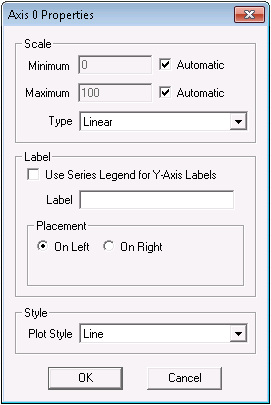
- Make settings changes to suit your needs. Available options are described below in Axis Properties.
- When you are finished, click OK to save your changes and exit.

Numerical Identifiers
Within CygNet, each Trend Tool axis is identified by three numbers. Two of these identifying numbers (configured axis index number and displayed axis index number) are only relevant in script.
The three identifying numbers are as follows:
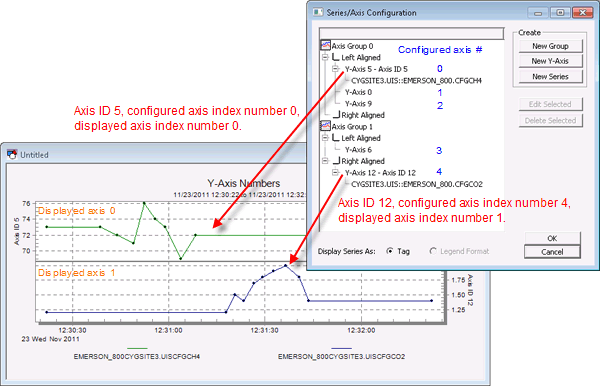
- Axis ID: The axis ID is the number assigned by a user to an axis in Edit mode or Run mode. When you add a new y-axis to an axis group, you may choose any of the available numbers (0 - 15) from the Select an Axis dialog box. This number is used to populate Y-Axis Number options on the Series Specification dialog box, which is used to configure individual series. Once the axis ID number is assigned to a y-axis, the number cannot be changed. If you want to change an axis ID number, you must delete the axis and create a new one from the available axis ID numbers. See also AxisID.
- Configured Axis Index: The configured axis index number is the number given to a y-axis in the vertical order it appears in the axis hierarchy of a Trend Tool. The topmost axis is 0, the next axis down is 1, and so on. The topmost y-axis is always configured axis index number 0, regardless of the axis ID assigned to it by the user. This sequence is reflected in the axis hierarchy displayed on the Series page of the CygNet Trend Control Properties dialog box in Edit mode and in the Properties > Edit Axes option available in Run mode.
- Displayed Axis Index: The displayed axis index number reflects the vertical sequence of axes displayed at runtime. The topmost axis displayed at runtime is axis 0, the next displayed axis down is 1, and so on. Only axes with configured series appear in runtime, so the displayed axis index number only applies to axes configured with series. The displayed axis index number defines the axis or axes included in a zoom event.
Example
You might use the (OCXProperties) dialog box to add a y-axis and assign it the axis ID 12. But if it’s the 5th lowest y-axis in a Trend Tool hierarchy, its configured axis index is 4. Finally, when you display this y-axis in Run mode, its displayed axis index is 1.
The following screenshot illustrates the relationship between the three y-axis numbers described above:
|
Axis Relationship |
Axis Properties
The following table lists and describes Axis n Properties dialog box properties.
| Option | Description |
|---|---|
|
Scale |
The Scale properties area includes the following options:
Type options are as follows:
|
|
Label |
The Label properties area includes the following options:
|
|
Plot styles available for a given graph are listed here. Choose from the available Plot Style options. These are as follows:
Note: Using points plot styles (for instance, Points + Line) in conjunction with the Square Wave or Extend Last Value options might result in inauthentic points for the purposes of enabling those options. Conversely, using points plot styles in conjunction with the Data Thinning option might result in fewer displayed data points. See also Plot Style Examples and PlotStyle. |
Plot Style Examples
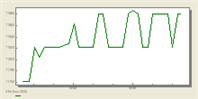
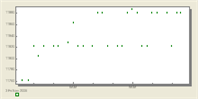
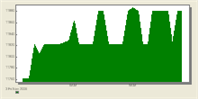
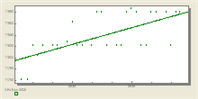
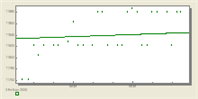
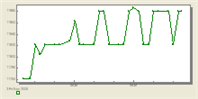
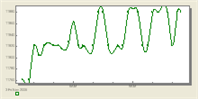
Nine plot styles are supported. You can use a Trend Fill option with any Plot Style except Bar and Area.
|
Line |
Bar |
Points |
||
|
Area |
Points + Best Fit Curve |
Points + Best Fit Line |
||
|
Points + Line |
Points + Spline |
Spline |